Posts

Showing posts with the label VMware Workstation

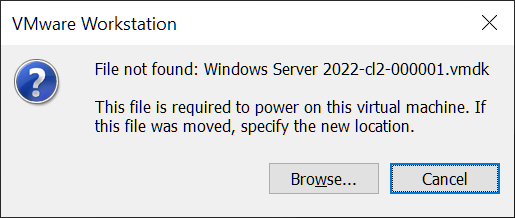
File not found VMDK This file is required to power on this virtual machine
Image
This post describes how to fix the following error that can occur in VMware Workstation: File not found: .vmdk This file is required to power on this virtual machine. If this file was moved, specify the new location. Cause This error occured when I restored a snapshot, changed the virtual machine settings, deleted the snapshot, then tried to create a new snapshot or power on the virtual machine. Resolution These vmdk files are snapshot files.  But I had just deleted my only snapshot.  So, I was able to fix the error on my test environment as follows: 1. Browse to the directory of the virtal machine and find another .vmdk file e.g. 2. Copy this .vmdk file and rename it to the file not found, in my case "Windows Server 2022-cl2-000001.vmdk" 3. The virtual machine now boots successfully: Related Posts - This PC can't run Windows 11 - VMware Workstation - VMware Workstation unrecoverable error: (vmui) Exception 0xc0000005 (access violation)

This PC can't run Windows 11 - VMware Workstation

Image
This post describes how to fix the error: This PC can't run Windows 11 This PC doesn't meet the minimum system requirements to install this version of Windows. For more information, visit https://aka.ms/WindowsSysReq This error can occur when installing Windows 11 on a virtual machine in VMware Workstation. Cause Windows 11 requires TPM as per the specification:  https://www.microsoft.com/en-us/windows/windows-11-specifications Resolution There are two ways to resolve this issue, either bypass the TPM check or add TPM to the virtual machine : Bypass TPM Check To bypass the TPM check when doing a new, clean install of Windows 11: 1. Go back a step from the "This PC can't run Windows 11" message 2. Press Shift + F10 on the keyboard to open a Command Prompt 3. Type regedit to open the Registry Editor and go to: HKEY_LOCAL_MACHINE\SYSTEM\Setup 4. Create a new Key named: LabConfig 5. Within 'LabConfig', create a new DWORD (32-bit) Value named: BypassTPMCheck A...

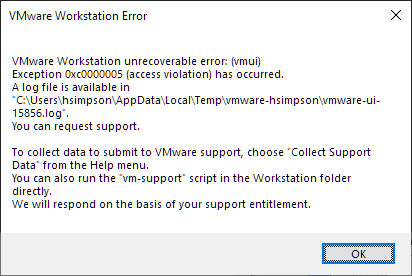
VMware Workstation unrecoverable error: (vmui) Exception 0xc0000005 (access violation)

Image
This post describes how to fix: VMware Workstation unrecoverable error: (vmui) Exception 0xc0000005 (access violation) has occurred. Cause Consulting the log file mentioned, the following can be seen: 2020-06-29T15:09:33.277+01:00| vmui| W115: "vmlist464" entries in the file "C:\Users\hsimpson\AppData\Roaming\VMware\inventory.vmls" are invalid. Somehow, entries in the inventory.vmls file have become invalid.  This has occurred to me a few times so it's a sensible idea to back this file up whenever you make significant changes to your VMware Workstation inventory. Resolution Either: Restore %AppData%\Roaming\VMware\inventory.vmls from a backup. - or - Delete %AppData%\Roaming\VMware\inventory.vmls and open VMware Workstation to create a new file.  This means you will need to recreate your folder hierarchy and add your virtual machines by opening their .vmx files. VMware Workstation should now open successfully. Related Posts - This PC can't run Windows...

Bug copying files from host to virtual machine on VMware workstation

Image
I found another bug whilst testing Windows files on my virtual test environment. I made a folder on my host machine which contains a couple of test files as follows: C:\aAéü1 !#$%&'()-.@^_`{}~£©™\aAéü1 !#$%&'()+,-.;=@[]^_`{}~£©™.txt C:\aAéü1 !#$%&'()-.@^_`{}~£©™\aAéü1 !#$%&'()+,-.;=@^_`{}~£©™.txt I then dragged and dropped the folder onto my virtual machine and was shocked to see that a square bracket had been inserted into both file names! C:\aAéü1 !#$%&'()-.@^_`{}~£©™\aAéü1 !#$ ] %&'()+,-.;=@[]^_`{}~£©™.txt C:\aAéü1 !#$%&'()-.@^_`{}~£©™\aAéü1 !#$ ] %&'()+,-.;=@^_`{}~£©™.txt These particular file names are obscure but I do wonder if this could happen in circumstances with more conventional file names that happen to include characters that trigger this bug!