Posts

Showing posts with the label YouTube

Add YouTube featured playlist link below video and above title

Image
In this post, I describe how to add a YouTube featured playlist link below a video, above the title. Clicking this link takes you to the playlist so you can easily watch other videos in that playlist. Resolution 1. The first step I took was to add the video to a playlist in my channel. 2. Next, I made that YouTube playlist into a series playlist . The playlist link above the video title then started appearing for some of the videos in that playlist.  The series playlist also appears as a Featured playlist in the video description: But, unfortunately, this didn't apply to the latest videos in the playlist. Adding hashtags to the video title, playlist title or video description didn't seem to make any difference. I also did the same for another video in another playlist and the link hasn't appeared yet. So, it seems it may be something YouTube automatically does if a video is in a series playlist. If you have more information, please do comment below!

Make a YouTube playlist into a series playlist

Image
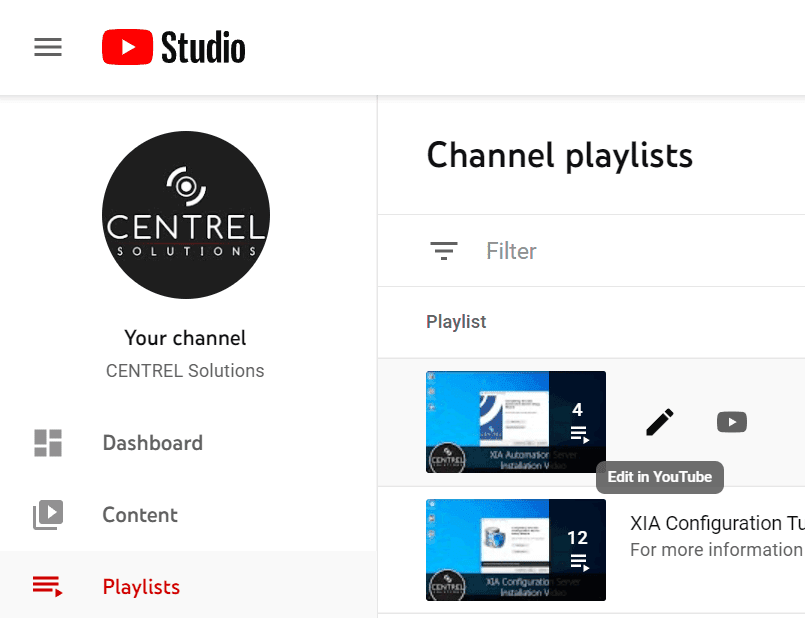
In this post, I describe how to make a YouTube playlist into a series playlist. This is required if you want add a YouTube playlist link below a video and above the title . Resolution 1. Login to YouTube Studio then select Playlists on the left. 2. Hover your playlist to reveal the pencil (edit) icon 3. Press the button with 3 vertical dots on the left 4. Press Playlist Settings (be careful not to press  Delete playlist  as there is no delete confirmation dialog so the playlist immediately deletes and I couldn't find a way to restore it!) 4. Slide the  Set as official series for this playlist  slider to the righ 5. Press Done You can find out more about Series playlists directly from Google here: https://support.google.com/youtube/answer/6084043?hl=en

Embed YouTube video with iFrame without fixed size height and width

Image
In this post, I describe how you can embed a YouTube video in HTML without using a fixed size height and width. Problem The problem with a fixed height and width is that the embedded YouTube video doesn't fit once the screen gets narrower than the fixed width (for example, on a mobile device) and you end up with the sides of the video being cut off and horizontal scrollbars: Resolution Thanks to CSS tricks for this post which has an excellent solution: 1. Create a container (e.g. a div) and put the embed video code from YouTube inside this container: < div class ="video-container">      < iframe src ="https://www.youtube.com/embed/HF7GTGaJdVg"></ iframe > </ div > 2. Specify the CSS for the container and the iFrame inside it: .video-container {     position : relative ;     padding-bottom : 56.63% ;     height : 0 ; }     ...

Remove unavailable videos are hidden in YouTube playlist

Image
This post describes how you can remove the 'unavailable videos are hidden' message in a YouTube playlist by removing the unavailable videos from the playlist. Cause This issue can occur when you delete videos in a playlist before removing them from that playlist. Resolution To remove unavailable videos that are hidden from your playlist: 1. Go to YouTube Studio , select Playlists then press the pencil button for the playlist with the unavailable videos 2. Press the three dots button then select Show unavailable videos 3. Hover the mouse over the video you want to remove, press the three vertical dots button which appears, then select Remove from... 4. The deleted video is removed from the playlist and, once all deleted videos have been removed, the 'unavailable videos are hidden' message no longer appears. Related Posts - Embed YouTube video with iFrame without fixed height and width - Force subtitles to default to on per YouTube video - Add YouTube playlist link be...

Add Chapters to break up YouTube videos into sections

Image
This post describes how to add Chapters to break up YouTube videos into sections. To add chapters to a YouTube video, you simply need to edit the video and add timestamps to the video description like this: 0:00 Introduction 0:27 Chapter 1 1:13 Chapter 2 3:30 End credits Once added, simple save the video, then view it on YouTube to see the chapter markers in the progress scrubbing bar and the chapter name in the video control area. As of 10th February 2021, this feature now also works for embedded YouTube videos.

Force subtitles to default to on per YouTube video

Image
This post describes how to force subtitles to default to on per YouTube video, either when viewed directly on YouTube, or when the video is embedded. Video viewed directly on YouTube To force subtitles to default to on for a video viewed directly on YouTube, edit the video, go to Video details, then add the tag "yt:cc=on" and press Save. Subtitles will default to on the next time anyone views the video directly on YouTube. Embedded YouTube Video To force subtitles to default to on for an embedded YouTube video, add the following URL parameter to the src attribute in the embed code "?cc_load_policy=1" Related Posts - Embed YouTube video with iFrame without fixed height and width - Remove unavailable videos are hidden in YouTube playlist -  Add YouTube ...

Add a YouTube End Screen

Image
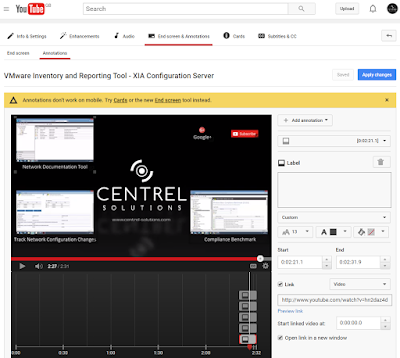
Over the last two months, I've been publishing YouTube videos to the CENTREL Solutions channel .  I'm also an avid watcher of YouTube videos and noticed that some videos had a snazzy end screen with clickable areas that took you to other videos or to allow you to subscribe to the channel. Knowing this was possible, I started to research how to add it to my videos.  I discovered the Annotations area in the Video Manager which allows you to add hotspots with links to videos, playlists, subscribe and more. I wasn't sure how to add the thumbnail screenshots but eventually figured out that you could embed them in the video itself then overlay the hotspots in the YouTube video manager later once it was uploaded. Add a YouTube End Screen In the last week or so, YouTube recently changed the annotations area.  It is now called "End screen & Annotations".  Also, as you can see in the screenshot above, if you go to annotations, you are now shown a warning that...

'There is no attribute "allowfullscreen"' iFrame embedded YouTube videos

Image
Problem You've embedded a video from YouTube into your HTML using their embed code e.g. <iframe width="560" height="315" src="https://www.youtube.com/embed/dNVpL2-8-BU" frameborder="0" allowfullscreen></iframe> You then validate your HTML and get the error: there is no attribute "allowfullscreen" Cause As stated by the w3c validation tool , one of the likely causes is that you're using a document type that does not support the "allowfullscreen" attribute for this element. The w3c validation tool tells you which document type you're using: In this case, we're using XHTML 1.0 Transitional which does not support allowfullscreen. Solution 1 HTML5 does support the allowfullscreen attribute on the iFrame element so changing the doctype to HTML5 will fix this issue.  You can try this from the w3c validation tool by changing the drop down just to the right of doctype from (dete...