Posts

DNString length mismatch - Exchange - Outlook Web App mailbox policy

Image
This post describes how to fix the error 'DNString length mismatch'. Cause This error can occur when a new Outlook Web App mailbox policy is created in Microsoft Exchange.  I found this issue on Exchange 2016. The error then occurs when you try to open Outlook Web App policies tab. Trying to diagnose the issue in PowerShell by running Get-OwaMailboxPolicy also leads to the same error. Further investigation using ADSI Edit reveals the object causing the error. Resolution To resolve the issue, delete the object using ADSI Edit. The Outlook Web App policies tab now opens again.

Operation terminated with error -1032 (JET_errFileAccessDenied, Cannot access file, the file is locked or in use)

This post describes how to fix the error "Operation terminated with error -1032 (JET_errFileAccessDenied, Cannot access file, the file is locked or in use)" This error can occur on Microsoft Exchange 2016 when you try to repair a mailbox database using eseutil. Cause The Exchange Management Console does not have the necessary privileges to access the file. Fix Open the EMC as Administrator.  eseutil should now have the privileges required to repair the database.

Failed to mount database. Error: An Active Manager operation failed. Operation failed with message: MapiExceptionDatabaseError

Image
This post describes how to fix the error "Failed to mount database. Error: An Active Manager operation failed. Error: The database action failed. Error: Operation failed with message: MapiExceptionDatabaseError: Unable to mount database." This error can occur on Microsoft Exchange 2016 when you try to mount a mailbox database. Cause One cause of this error is the mailbox database being in a 'dirty shutdown' state. To check the state of a mailbox database, open the Exchange Management Console and run the following (replacing the path as necessary): eseutil /mh "C:\Program Files\Microsoft\Exchange Server\V15\Mailbox\Mailbox Database 0969320567\Mailbox Database 0969320567.edb" Fix 1 To repair the database, run the following in the EMC: eseutil /p "C:\Program Files\Microsoft\Exchange Server\V15\Mailbox\Mailbox Database 0969320567\Mailbox Database 0969320567.edb" The state should now be 'clean shutdown': You should now b...

Cannot open mailbox /o=First Organization/ou=Exchange Administrative Group Microsoft System Attendant

Image
This post describes how to fix the error: Cannot open mailbox /o=First Organization/ou=Exchange Administrative Group (FYDIBOHF23SPDLT)/cn=Configuration/cn=Servers/cn=EXCH-2K16-2/cn=Microsoft System Attendant. This error can occur on Microsoft Exchange 2016 when you try to open the add-ins section. Cause One cause of this error is if one or more mailbox databases are not mounted. Fix To resolve this issue, open the Exchange admin center, navigate to servers, then databases and check if any are dismounted.  If that is the case, select the mailbox database, press the ellipses, then press Mount. Error If the mount fails, the following post describes one way to resolve this error: Failed to mount database. Error: An Active Manager operation failed. Operation failed with message: MapiExceptionDatabaseError Video YouTube link:  Cannot open mailbox/o=first organization/ou=exchange administrative group Microsoft System Attendant

XIA Configuration 10 Demonstration Video

Image
Save time and effort by using XIA Configuration to automatically create detailed, technical documentation including version history, comparison, reporting and inventory discovery. Find out more in this demonstration video:

Document Windows Registry Keys and Values

Image
XIA Configuration 10 has recently been released and with it comes the ability to document defined Windows registry keys and values. Registry Keys Scan Settings Data Collected Display Name Registry Hive Located (true/false) Registry Values Scan Settings Data Collected Display Name Value Type Value Located (true/false) Web interface The data is presented within a Windows Machine item in the XIA Configuration web interface: Windows Registry Value Summary Report Use the reporting feature to query the registry across all the Windows servers and workstations in an environment at once: Learn more:  Scan and Check Windows Registry Keys and Values

Get Started with XIA Configuration 10

Image
If you've installed XIA Configuration 10 and you're not sure what to do next, take a look at the Getting Started video below. It covers how to perform scans using the XIA Configuration Client as well as how to view, organise and query the data in the XIA Configuration Server web interface.

Install XIA Configuration Server v10

Image
If you're keen to try XIA Configuration Server v10 and you want some help with the installation, check out the latest installation video below. The video runs through the installation wizard and describes what to do if you don't have a SQL server available.  The advanced options at the end of the wizard are also explained. Next, watch how to get started with XIA Configuration 10 >

What's new in XIA Configuration 10

Image
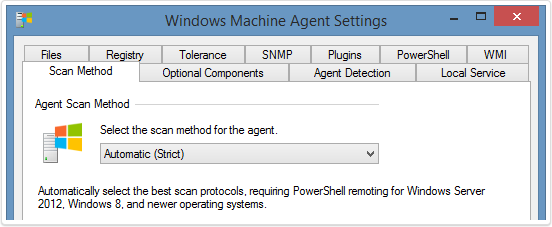
CENTREL Solutions has released version 10 of its network documentation tool XIA Configuration. Check out some of the new features below: Windows The ability to scan Windows Server 2012 and above using only a PowerShell remoting connection. Learn more about how XIA Configuration can be used as a server documentation tool . Azure Support for manually scanning Azure tenants which have two-factor authentication or Microsoft Live accounts. Learn more about how XIA Configuration can be used as an Azure documentation tool . HTML Editor An improved HTML editor control. Learn more  > SQL Server 2017 Support for scanning and documenting SQL Server 2017. Learn more about how XIA Configuration can be used as a SQL Server inventory tool . Registry Support for documenting defined registry keys and values on Windows machines. Learn more > Free Trial You can try XIA Configuration 10 for free by requesting a free trial license >

.NET Framework has not been installed because a certificate chain could not be built to a trusted root authority

Image
Issue This blog post describes how to fix the error: .NET Framework 4.6.2 has not been installed because a certificate chain could not be built to a trusted root authority on Windows 7 and Server 2008 R2. Cause This error can occur when installing the .NET Framework 4.7/4.6.2/4.6.1/4.6 or 4.5.2 on Windows Server 2008 SP2, Windows 7 SP1 and Windows Server 2008 R2 SP1 when an internet connection is not available. Resolution Download and import the latest Microsoft root certificate into Trusted Root Certification Authorities on the Local Machine using the Certificates snap-in in MMC. Please read the following Microsoft article for different methods of doing this: https://support.microsoft.com/en-gb/help/3149737/known-issue-for-security-update-3136000-for-the-net-framework-4-6-1-4 Edit: The above link is currently broken.  However, the Microsoft root certificate can be downloaded from this page:  h...

Location is not accessible - C:\ is not accessible - Access is denied.

Image
This post describes one way to fix the error "Location is not accessible - C:\ is not accessible - Access is denied." This can be frustrating as the C:\ drive can't be accessed! The cause of this issue in my case was because a user had been created in local users and groups with a home folder connected to \\localhost\c$.  This changed the security of the C:\ drive to only allow access to that user and Administrators. Fix 1. Right click the C:\ drive and select Properties then go to the Security tab, press Advanced then Continue to open Advanced Security Settings 2. Now press Add then the 'Select a principal' hyperlink 3. Change the Location to the local machine if necessary, then type Users, Check Names and press OK 4. Press OK, then OK, then Yes in the Windows Security dialog box Windows will now set the security information.  Click the Windows Security box to check the progress - you may see some errors setting the security on sub...

Exception setting "NetProfile": Cannot convert the "System.Object[]" value of type "System.Object[]" to type "Microsoft.Management.Infrastructure.CimInstance"

Image
When running the PowerShell command Get-NetIPConfiguration, you may see the exception: Exception setting "NetProfile": Cannot convert the "System.Object[]" value of type "System.Object[]" to type "Microsoft.Management.Infrastructure.CimInstance" This occurred on my Windows Nano Server which, for some reason, had obtained an invalid Default Gateway of 0.0.0.0 Fix To fix the exception, remove the invalid Default Gateway.  To do this on Windows Nano Server, I used the following PowerShell command: remove-netroute -interfaceindex 3 -NextHop 0.0.0.0

Import-Module : The specified module 'SmbShare' was not loaded because no valid module file was found in any module directory - Nano Server

Image
This post describes how to fix the error "Import-Module : The specified module 'SmbShare' was not loaded because no valid module file was found in any module directory." on Windows Nano Server. This error can occur if you try to import the SmbShare module without having first installed the File Server role.  To install this role on Windows Nano Server: 1. Install the Nano Server Package Provider: Save-Module -Path "$env:programfiles\WindowsPowerShell\Modules\" -Name NanoServerPackage -minimumVersion 1.0.1.0 Import-PackageProvider NanoServerPackage 2. Install the File Server role: Install-NanoServerPackage Microsoft-NanoServer-Storage-Package 3. Restart the Windows Nano Server. Once the server has restarted, you can run the SmbShare cmdlets e.g. Get-SmbShare

Windows Update History Deleted After Sysprep

Image
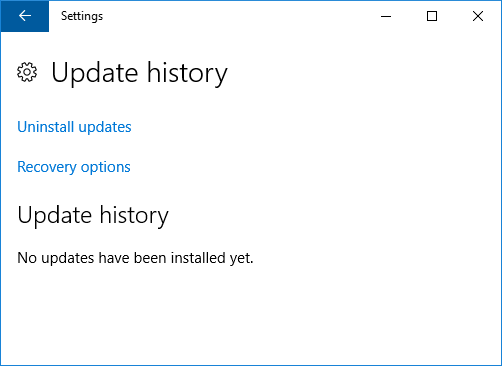
I've been testing Windows Update History on my virtual machines and noticed that a machine which has had several Windows Updates installed on it was not listing any of them in its Update history: Cause After a little research, I discovered that it was because the updates were installed on my base virtual machine which I then cloned and ran sysprep on to create the test virtual machine.  It seems running sysprep causes the update history to be deleted. If I just clone my base virtual machine and do not run sysprep then look at the Update history, I can see all the installed updates: Related Posts -  Sysprep was not able to validate your Windows installation - Windows 11

Windows Patches Installed On Date Incorrect Format on Windows Server 2012

Image
If you run the following on Windows Server 2012 $patches = get-ciminstance Win32_QuickFixEngineering $patches[0].InstalledOn you get the date the patch was installed on in American date format MM/DD/YY.  PowerShell then converts the DD part of the date into a month so the result is incorrect. If you run the same query on Windows Server 2012 R2, the date is correct If you dig into the code, you can see the issue, here it is in Windows Server 2012 System.Object InstalledOn {     get=if ( [ environment ]:: osversion . version . build -ge 7000 )     {         # WMI team fixed the formatting issue related to InstalledOn         # property in Windows7 (to return string)..so returning the WMI's         # version directly         [ DateTime ]:: Parse( $this . psBase . CimInstancePr...

XIA Configuration review on 4sysops

Image
If you're interested in inventory and documentation, take a look at the  XIA Configuration review recently posted on the 4sysops website, an online community for SysAdmins and DevOps. The review is written by Timothy Warner who is a Microsoft Cloud and Datacenter Management Most Valuable Professional (MVP).

Bug renaming ODBC System Data Source with Oracle Driver

Image
I created a System Data Source with an Oracle driver and gave it the name "1Data Source Name" I then changed the Data Source Name to "Aéü1 "#$a%&'+-./:<>^_`|~£©™" Upon pressing OK, I discover that my System Data Source has been duplicated and I now have two entries, one with the original data source name and one with the new data source name! I seem to be finding a few bugs in Windows lately!

Bug copying files from host to virtual machine on VMware workstation

Image
I found another bug whilst testing Windows files on my virtual test environment. I made a folder on my host machine which contains a couple of test files as follows: C:\aAéü1 !#$%&'()-.@^_`{}~£©™\aAéü1 !#$%&'()+,-.;=@[]^_`{}~£©™.txt C:\aAéü1 !#$%&'()-.@^_`{}~£©™\aAéü1 !#$%&'()+,-.;=@^_`{}~£©™.txt I then dragged and dropped the folder onto my virtual machine and was shocked to see that a square bracket had been inserted into both file names! C:\aAéü1 !#$%&'()-.@^_`{}~£©™\aAéü1 !#$ ] %&'()+,-.;=@[]^_`{}~£©™.txt C:\aAéü1 !#$%&'()-.@^_`{}~£©™\aAéü1 !#$ ] %&'()+,-.;=@^_`{}~£©™.txt These particular file names are obscure but I do wonder if this could happen in circumstances with more conventional file names that happen to include characters that trigger this bug!

Brackets removed when copying files in Windows

Image
I've recently been testing files with different names in Windows using a long set of special characters: aAéü1 !#$%&'()+,-.;=@[]^_`{}~£©™ Part of this testing involved copying these files and I noticed that the round brackets are automatically removed by Windows when doing so! aAéü1 !#$%&'+,-.;=@[]^_`{}~£©™ - Copy This only seems to happen if the curved brackets do not contain any text.  If you put some characters between the brackets, they remain when the file is copied.

Error 0x80041013 WMI Provider load failure

Image
This post describes how to fix error 0x80041013 'Provider load failure' which can occur when using the Windows Management Instrumentation Tester (wbemtest) to run a WMI query: Screenshot of error 0x80041013 Cause This error can occur when wbemtest does not have sufficient privileges to load the required provider. Resolution To fix this error, run wbemtest as an administrator: Your query should now execute successfully. Screenshot of a query in wbemtest Video YouTube link:  0x80041013