Posts

Location is not accessible - C:\ is not accessible - Access is denied.

Image
This post describes one way to fix the error "Location is not accessible - C:\ is not accessible - Access is denied." This can be frustrating as the C:\ drive can't be accessed! The cause of this issue in my case was because a user had been created in local users and groups with a home folder connected to \\localhost\c$.  This changed the security of the C:\ drive to only allow access to that user and Administrators. Fix 1. Right click the C:\ drive and select Properties then go to the Security tab, press Advanced then Continue to open Advanced Security Settings 2. Now press Add then the 'Select a principal' hyperlink 3. Change the Location to the local machine if necessary, then type Users, Check Names and press OK 4. Press OK, then OK, then Yes in the Windows Security dialog box Windows will now set the security information.  Click the Windows Security box to check the progress - you may see some errors setting the security on sub...

Exception setting "NetProfile": Cannot convert the "System.Object[]" value of type "System.Object[]" to type "Microsoft.Management.Infrastructure.CimInstance"

Image
When running the PowerShell command Get-NetIPConfiguration, you may see the exception: Exception setting "NetProfile": Cannot convert the "System.Object[]" value of type "System.Object[]" to type "Microsoft.Management.Infrastructure.CimInstance" This occurred on my Windows Nano Server which, for some reason, had obtained an invalid Default Gateway of 0.0.0.0 Fix To fix the exception, remove the invalid Default Gateway.  To do this on Windows Nano Server, I used the following PowerShell command: remove-netroute -interfaceindex 3 -NextHop 0.0.0.0

Import-Module : The specified module 'SmbShare' was not loaded because no valid module file was found in any module directory - Nano Server

Image
This post describes how to fix the error "Import-Module : The specified module 'SmbShare' was not loaded because no valid module file was found in any module directory." on Windows Nano Server. This error can occur if you try to import the SmbShare module without having first installed the File Server role.  To install this role on Windows Nano Server: 1. Install the Nano Server Package Provider: Save-Module -Path "$env:programfiles\WindowsPowerShell\Modules\" -Name NanoServerPackage -minimumVersion 1.0.1.0 Import-PackageProvider NanoServerPackage 2. Install the File Server role: Install-NanoServerPackage Microsoft-NanoServer-Storage-Package 3. Restart the Windows Nano Server. Once the server has restarted, you can run the SmbShare cmdlets e.g. Get-SmbShare

Windows Update History Deleted After Sysprep

Image
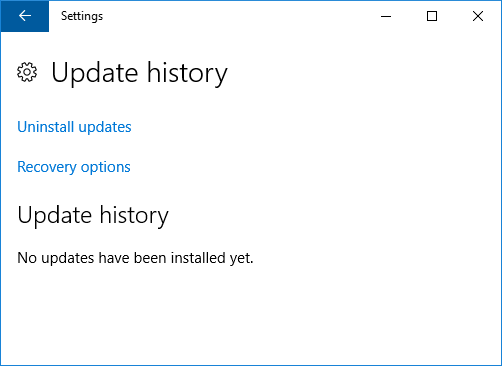
I've been testing Windows Update History on my virtual machines and noticed that a machine which has had several Windows Updates installed on it was not listing any of them in its Update history: Cause After a little research, I discovered that it was because the updates were installed on my base virtual machine which I then cloned and ran sysprep on to create the test virtual machine.  It seems running sysprep causes the update history to be deleted. If I just clone my base virtual machine and do not run sysprep then look at the Update history, I can see all the installed updates: Related Posts -  Sysprep was not able to validate your Windows installation - Windows 11

Windows Patches Installed On Date Incorrect Format on Windows Server 2012

Image
If you run the following on Windows Server 2012 $patches = get-ciminstance Win32_QuickFixEngineering $patches[0].InstalledOn you get the date the patch was installed on in American date format MM/DD/YY.  PowerShell then converts the DD part of the date into a month so the result is incorrect. If you run the same query on Windows Server 2012 R2, the date is correct If you dig into the code, you can see the issue, here it is in Windows Server 2012 System.Object InstalledOn {     get=if ( [ environment ]:: osversion . version . build -ge 7000 )     {         # WMI team fixed the formatting issue related to InstalledOn         # property in Windows7 (to return string)..so returning the WMI's         # version directly         [ DateTime ]:: Parse( $this . psBase . CimInstancePr...

XIA Configuration review on 4sysops

Image
If you're interested in inventory and documentation, take a look at the  XIA Configuration review recently posted on the 4sysops website, an online community for SysAdmins and DevOps. The review is written by Timothy Warner who is a Microsoft Cloud and Datacenter Management Most Valuable Professional (MVP).

Bug renaming ODBC System Data Source with Oracle Driver

Image
I created a System Data Source with an Oracle driver and gave it the name "1Data Source Name" I then changed the Data Source Name to "Aéü1 "#$a%&'+-./:<>^_`|~£©™" Upon pressing OK, I discover that my System Data Source has been duplicated and I now have two entries, one with the original data source name and one with the new data source name! I seem to be finding a few bugs in Windows lately!

Bug copying files from host to virtual machine on VMware workstation

Image
I found another bug whilst testing Windows files on my virtual test environment. I made a folder on my host machine which contains a couple of test files as follows: C:\aAéü1 !#$%&'()-.@^_`{}~£©™\aAéü1 !#$%&'()+,-.;=@[]^_`{}~£©™.txt C:\aAéü1 !#$%&'()-.@^_`{}~£©™\aAéü1 !#$%&'()+,-.;=@^_`{}~£©™.txt I then dragged and dropped the folder onto my virtual machine and was shocked to see that a square bracket had been inserted into both file names! C:\aAéü1 !#$%&'()-.@^_`{}~£©™\aAéü1 !#$ ] %&'()+,-.;=@[]^_`{}~£©™.txt C:\aAéü1 !#$%&'()-.@^_`{}~£©™\aAéü1 !#$ ] %&'()+,-.;=@^_`{}~£©™.txt These particular file names are obscure but I do wonder if this could happen in circumstances with more conventional file names that happen to include characters that trigger this bug!

Brackets removed when copying files in Windows

Image
I've recently been testing files with different names in Windows using a long set of special characters: aAéü1 !#$%&'()+,-.;=@[]^_`{}~£©™ Part of this testing involved copying these files and I noticed that the round brackets are automatically removed by Windows when doing so! aAéü1 !#$%&'+,-.;=@[]^_`{}~£©™ - Copy This only seems to happen if the curved brackets do not contain any text.  If you put some characters between the brackets, they remain when the file is copied.

Error 0x80041013 WMI Provider load failure

Image
This post describes how to fix error 0x80041013 'Provider load failure' which can occur when using the Windows Management Instrumentation Tester (wbemtest) to run a WMI query: Screenshot of error 0x80041013 Cause This error can occur when wbemtest does not have sufficient privileges to load the required provider. Resolution To fix this error, run wbemtest as an administrator: Your query should now execute successfully. Screenshot of a query in wbemtest Video YouTube link:  0x80041013

Document Printer Properties on Windows Computers

Image
Automatically document your Printer properties with the network documentation tool XIA Configuration. Screenshot or Printer Properties in the XIA Configuration Server web interface Scan your network with the XIA Configuration Client to find Windows machines and network devices including printers.  Then view this data in the XIA Configuration Server web interface where you can run reports to audit your environment and generate professional documentation. The following data is included when documenting printers: Available From Available Until Capabilities Caption Comment Device ID Driver Location Port Print Processor Priority Security Separator Page Share Name Spool Mode Advanced Settings Find out more about XIA Configuration > Request a Free Trial >

The WSMan provider host process did not return a proper response

Image
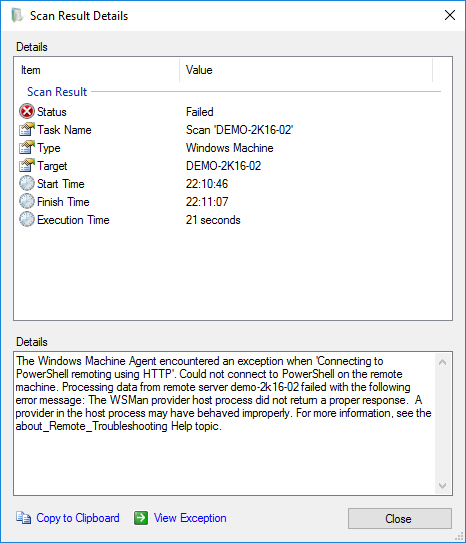
This post describes one way to fix the error: The WSMan provider host process did not return a proper response. Issue When retrieving data from a remote machine using PowerShell, you see errors such as: 'The paging file is too small for this operation to complete.' 'Not enough storage is available to complete this operation.' 'The WSMan provider host process did not return a proper response.  A provider in the host process may have behaved improperly.' Screenshot from XIA Configuration Cause This error can occur when the MaxMemoryPerShellMB value on the remote machine is not high enough to allow a proper response to be returned. Resolution To check the MaxMemoryPerShellMB setting, run the following on the remote machine you are trying to retrieve data from using PowerShell: Get-Item WSMan:\localhost\Shell\MaxMemoryPerShellMB On my Windows Server 2016 virtual machine, this error occurred when the value was set to 25.  To set a ...

Value does not fall within the expected range - Task Scheduler

Image
This post describes how to fix the error 'Value does not fall within the expected range' which can occur when using Microsoft Windows Scheduled Tasks. Cause This error occurs when you add a Monthly trigger to a scheduled task and you pick one of the 'Select all' options: After you press OK, then press OK again to save the Task, the error ''Value does not fall within the expected range'' appears. Resolution To fix this error, open the triggers where 'Select all' has been used, observe that 'Select all' is no longer checked however all the other options are selected, then press OK. Warning If you have picked 'Last', this option is also no longer selected when you open the triggers after seeing the error. You must re-select this option in order to re-apply it.

Document Windows Server Roles and Features

Image
Use XIA Configuration to automatically document all roles and features on all your servers running Windows Server 2008 and above. The following information is documented for each role or feature: Name Numeric Identifier Install State Parent Numeric Identifier Parent Unique Name Unique Name Use the reporting feature to query the install state of all the roles and features across your entire environment at once. Find out more about documenting Windows servers > Request a free trial >

File Access Denied - You'll need to provide administrator permission to move this file

Image
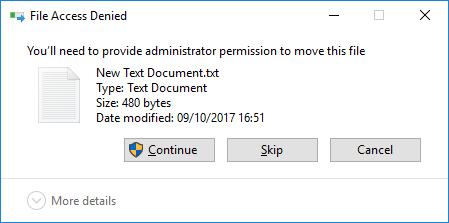
After performing some testing on one of my virtual machines, I somehow lost the ability to drag and drop files from my host machine to the vm, even though I was logged on as the Administrator. Further investigation revealed that I could not drag and drop files from the root of my local drive to my desktop without the following User Account Control prompt appearing: File Access Denied You'll need to provide administrator permission to move this file A similar prompt also appeared for folders: Destination Folder Access Denied You'll need to provide administrator permission to move to this folder Permissions? At first, I thought it might be a permissions issue but this checked out ok. Policy Setting I then checked the policy settings and noticed the following policy was enabled: User Account Control: Admin Approval Mode for the Built-in Administrator account This is located in Computer Configuration > Windows Settings > Security Settings > Loca...

Document Windows Computer Devices

Image
If you want to save time and automatically keep a record of the configuration of the devices on the Windows servers and workstations in your organization, take a look at the network documentation tool XIA Configuration . It scans all the Windows machines on your network then makes the configuration data available in a searchable web interface or a PDF export allowing you to create professional documentation in seconds. XIA Configuration also includes over 200 reports allowing you to audit all the machines in your environment at once.  Reports can be exported to CSV for further analysis. The following data can be audited for Windows machine devices: Device Settings Class Class GUID Device Status PNP Device Identifier Manufacturer Device Class Location Driver Details Driver Date Driver Provider Signed By Driver Version Inf Name Find out more about XIA Configuration > Download Free 30-Day Trial >

A constraint violation occurred. (exception from hresult: 0x8007202f)

Image
When calling the System.DirectoryServices.DirectoryEntry.CommitChanges method, the following error can occur if one of the property values is too long or of the wrong type: A constraint violation occurred. (exception from hresult: 0x8007202f) This can occur for example if you try to create a user account in Active Directory with a first name which is too long. If you are using the user provisioning software XIA Automation and you enter an invalid value during the user creation process, this error will display.  You can also see the full exception in the trace log. Screenshot showing error 'A constraint violation occurred' Solution Ensure that the values you are using to create the user account are valid according to the Microsoft documentation for Active Directory i.e. the correct type and within the length constraints.

Document Remote Desktop and Remote Assistance Settings

Image
If you have a business requirement to audit and document the remote desktop and remote assistance settings on the Windows PCs and servers on your network, use XIA Configuration to perform this task automatically. Each Windows PC and server is automatically discovered and scanned.  The data can then be viewed in the web interface where you can also perform audits and run reports. Or you can generate professional documentation with your own look and feel. The following settings are documented: Remote Assistance Settings Allow Remote Control Create invitations for Windows Vista or later Enabled Maximum Ticket Expiry Remote Desktop Settings Allow Connections Connection Mode Is Session Host Licensing Mode Security Group Name Remote Desktop Users Learn more about documenting Remote Desktop and Remote Assistance settings > Request a Free Trial >

Stop Windows Modules Installer Worker High CPU Server Permanently

Image
In this post, I describe how to permanently stop Windows Modules Installer Worker from using high CPU on Windows server.  As with my previous post on this subject, I would not do this on a live machine, however, it can be a pain on a test machine, particularly one that is only on from time to time as it seems to kick in as soon as you turn the machine back on. Stop Windows Modules Installer Worker Stop Windows Maintenance Modules Installer Worker from ever being started by Windows Maintenance tasks by downloading PSTools and running the following commands: Server 2012 R2 psexec  \\% computername %   -s  schtasks  / change  / tn "\Microsoft\Windows\TaskScheduler\Maintenance Configurator"  / disable psexec  \\% computername %   -s  schtasks  / change  / tn "\Microsoft\Windows\TaskScheduler\Regular Maintenance"  / disable psexec  \\% computername %   -s  schtasks  / change  / tn...

List Installed Programs on Windows

Image
Did you know you can use XIA Configuration to automatically get a list of the installed programs on all your Windows servers and workstations?  Read this article to find out how. How to get a list of Installed Programs on Windows 1. Create a Windows Machine Scan Task Create a Windows Machine scan task in the XIA Configuration Client.  In agent settings, ensure Installed Programs is set to Scan. 2. Scan the Windows Machines Either start a scan manually or schedule a scan.  Once complete, check it was successful. 3. List Installed Programs In the XIA Configuration Server, open a Windows machine item, navigate to Software > Installed Software to see a list of installed programs: 4. Run the Software Installation Report You can also run the Software Installation Report under Windows Machine Reports in the Browse Reports section of XIA Configuration Server. Installed Programs data The Installed Programs data listed by XIA Configura...